How to annotate an article online (underline, box and add notes on any web page)
Mark up any online article on the page itself: underline, box and write notes that stay on the words as you scroll and come back next time, then keep a copy with your notes. Plus how to annotate an article well.
By The Nitpique Team · · 4 min read
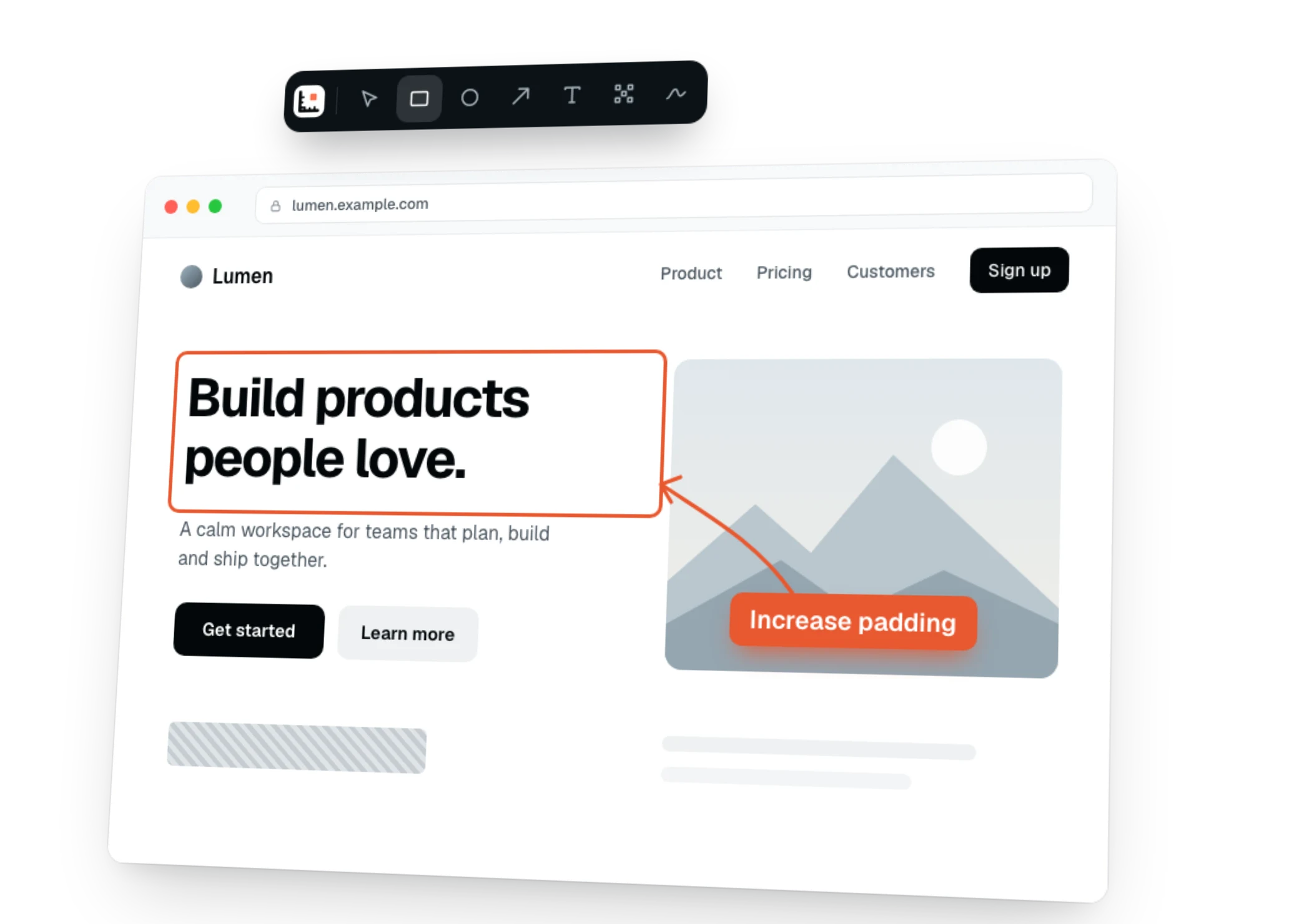
Annotating an article is how you read it twice in the time of once: you mark the claim that matters, circle the number you want to check, and write the question that came to mind beside it. On paper that takes a pen. Online, most articles give you nothing to write with, so here are two ways that work on any web page.
Annotate the article on the page#
- Add Nitpique to Chrome, open the article, and turn it on with Alt⌥Shift⇧M.
- Press A to annotate, then pick a tool: P for the pen, to underline or circle; R to box a paragraph; L for a line; A for an arrow; T to type a note in the margin.
- Read on and scroll: each mark stays on the words it was drawn over. Press Esc to close Annotate and read the article clean; your marks come back when you open it again on that page.
There is no highlighter on the page itself: underline with the pen or a line, or box the passage. For a true highlighter, capture the page and use the Annotator's Highlight, below.
Keep a copy with your notes#
Press Capture on the annotation toolbar and choose Full page: the whole article, top to bottom, with your marks, as one image. Save it, or open it in the Annotator to highlight lines, add more notes and blur anything you do not want to share.
Or annotate it as a PDF#
If you would rather have pages, print the article to PDF from the browser's print dialog, then drop the PDF on the Annotator. Each page opens in a tab with every tool, Highlight included, and the result saves back as a PDF. Read how to annotate a PDF online for the details.
How to annotate an article well#
- Read it once first, then annotate on the second pass
- Box the main claim of each section, in one colour
- Underline evidence for it, and circle numbers you want to check
- Write questions and disagreements in the margin, as short as you can
- Mark words you had to look up, with their meaning beside them
- End with a two-line summary at the top in your own words
Good to know#
- Your marks are kept in your browser for that page's address, and nothing is uploaded. They are yours alone: to share them, send the capture.
- They sit where you drew them on the page. If the article's layout changes later (a different window width, or an edited article), marks can end up beside the words instead of on them.
- Some articles sit inside a scrolling panel rather than the page itself; marks follow the page's own scroll.