How to annotate a PDF online, free (no upload, no account)
Add arrows, boxes, text, highlights and redaction to a PDF in your browser and save it back as a PDF, without uploading the file anywhere. What it can and cannot do, and tips for a PDF review.
By The Nitpique Team · · 4 min read
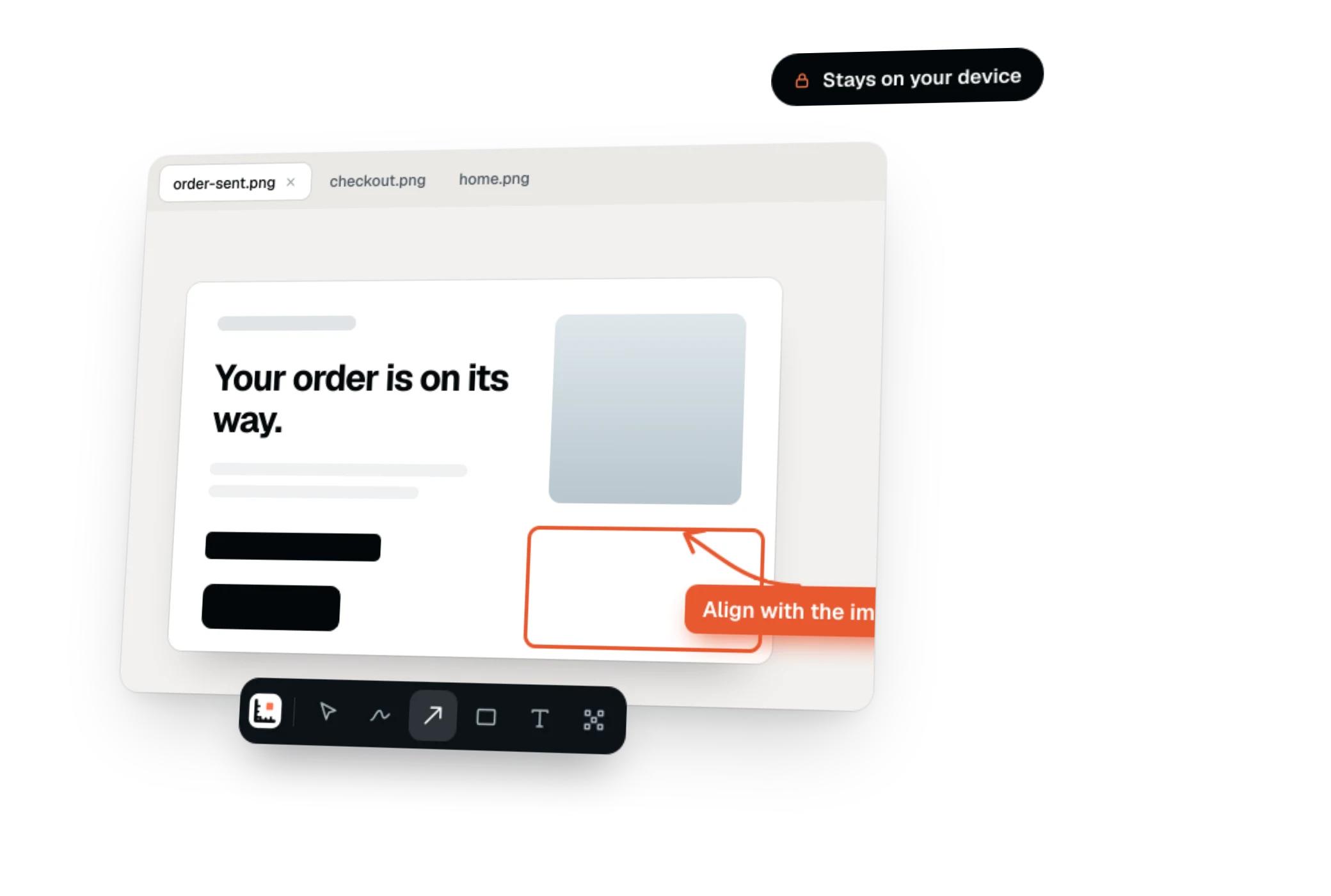
Most online PDF tools upload your file to their server before you can draw on it. That is a problem when the PDF is a contract, an invoice or a design with a client's name on it. The Annotator runs entirely in your browser, needs no account, and gives you the marked-up PDF back.
Open your PDF#
- Go to nitpique.dev/annotator.
- Drop the PDF anywhere on the page, press Open images or a PDF (Ctrl⌘O) and choose it, or paste it.
- Each page opens in a tab of its own, drawn at twice its size so the text stays sharp as you zoom. Up to 50 pages open from one file.
Mark it up#
Every tool works on a PDF page as it does on an image, each with a single key:
| Tool | Key | Use it for |
|---|---|---|
| Arrows | A | Pointing at a clause, a number or a detail |
| Shapes | R | Boxing a paragraph or a figure |
| Text | T | A comment or a correction beside it |
| Highlight | H | Marking the lines that matter |
| Pen | P | Circling, underlining or signing your initials |
| Redact | X | Covering anything private in solid black |
Undo and redo cover every mark. Move between pages with the tabs at the top or the arrows at the sides.
Redact before you share#
Redact paints over an area in solid black, and the saved page is a new picture of the page, so nothing of what was under the black box is left in the file. That is not true of every PDF editor: some only draw a box on top, and the text underneath can still be copied out. Use Redact for account numbers, addresses and names.
Save it as a PDF, or a page as an image#
- PDF: Download, then PDF, saves the file's open pages with their marks, in their order and at their own page size. Close a page's tab first to leave it out.
- PNG: the page in front on its own, to paste into a chat or a ticket.
What it does not do#
| You want to | Here |
|---|---|
| Draw, write and highlight on the pages | Yes |
| Hide private details for good | Yes, with Redact |
| Save the result as a PDF | Yes |
| Change the PDF's own text | No: it marks up pages, it is not a text editor |
| Keep the text selectable after saving | No: saved pages are images of the pages |
| Open a password-protected PDF | No: open a copy without the password |
| Mark up more than 50 pages at once | No: split the file first |
Where your PDF goes#
Nowhere. The PDF is read and drawn by your own browser, your marks are kept on your device, and the saved file is made there too. Nothing is uploaded, and there is no account to make.
Tips for a PDF review#
- One comment per mark, so each can be answered or fixed on its own
- Put the page number in your message when you send a single page
- Highlight what to keep, box what to change, write what to change it to
- Redact before you save, not after: the saved page keeps only what you see
- Close the tabs of pages with no marks before you save, to send a shorter file
Marking up screenshots too? Read how to annotate a screenshot online, or how to annotate an article online for web pages.