How to give visual feedback on a website (annotate it, then share it)
Annotate any live website with arrows, boxes and text, capture it with your marks and send it, or mark up a screenshot with nothing to install. Plus what makes website feedback easy to act on.
By The Nitpique Team · · 5 min read
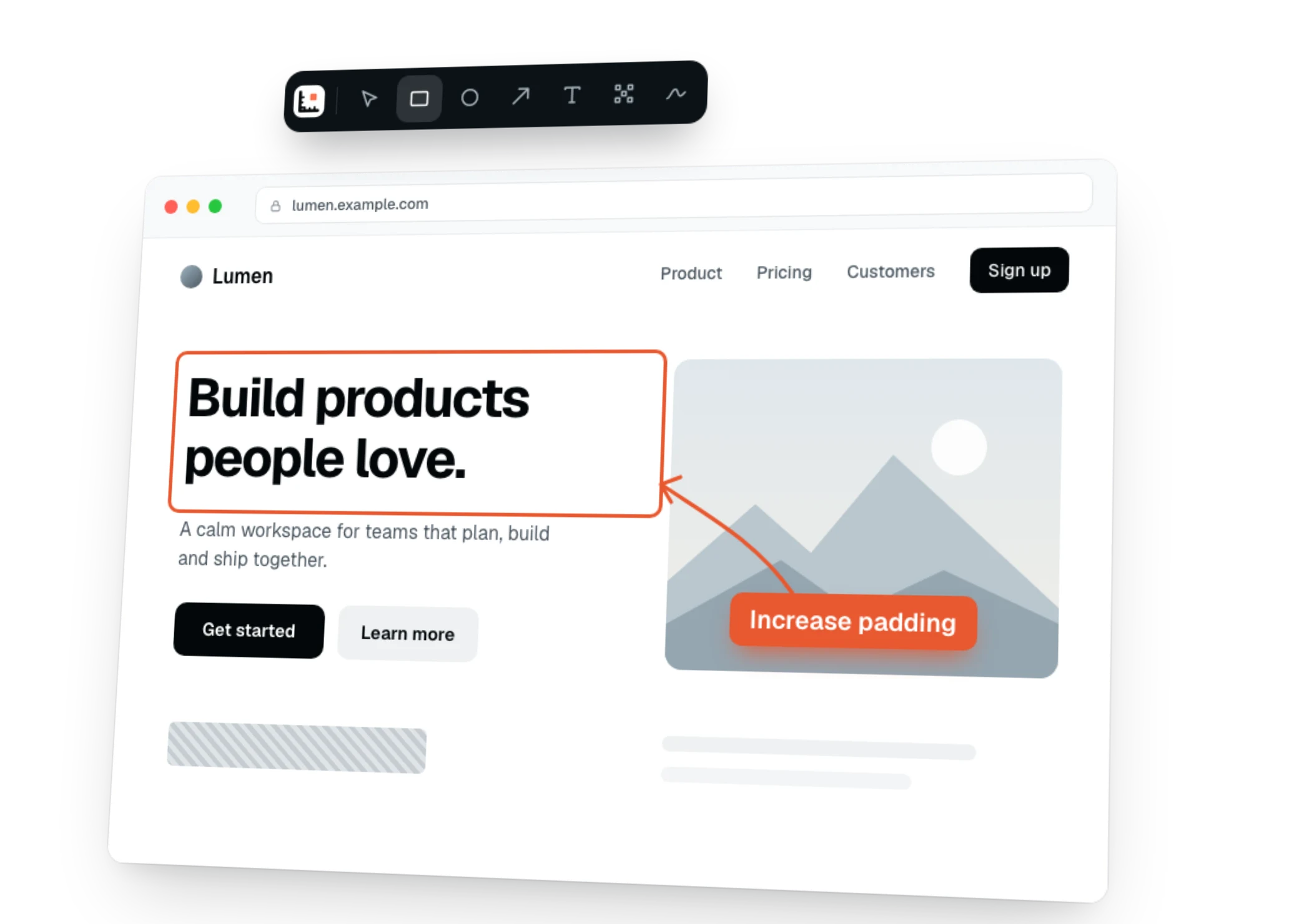
"The button looks a bit off on the pricing page" starts a conversation. A screenshot with an arrow on the button and the words "8px too low" ends it. Visual feedback is faster to give, faster to understand, and harder to misread, whether you are a designer reviewing a build, a client reviewing a site, or a tester reporting a bug.
Annotate the live website#
Drawing on the page itself is the quickest way: no screenshot to take first, and the page keeps working while you draw.
- Add Nitpique to Chrome, open the page and turn it on with Alt⌥Shift⇧M.
- Press A to annotate. Draw with the pen (P), a box (R), an arrow (A) or text (T), and redact anything private with X. Scroll on as you go: each mark stays on what it points at.
- Press Capture for the visible page or the full page, with your marks. Copy it, save it as a PNG, or open it in the Annotator to add more.
Your marks are kept for that page: close Annotate and they hide, open it again and they come back, so you can review a page over several visits.
From a screenshot, with nothing to install#
If you cannot add an extension, a screenshot works too. Take it with your system's shortcut, then open the Annotator and paste it (Ctrl⌘V). It has the same tools: arrows, boxes, ellipses, a pen, text, highlight, blur and redaction. The image stays on your device; nothing is uploaded. For more on it, read how to annotate a screenshot online.
Report a bug with the details attached#
For a bug, the picture is half of it: the developer also needs the page, the browser and the window size. Nitpique's Capture can add a Markdown bug report to an element's or the page's capture: the selector, its size, the address, the browser and the viewport, copied as Markdown, ready to paste into Jira, Linear, GitHub or a chat with the image.
What makes feedback easy to act on#
- One problem per mark, so each can be fixed and ticked off on its own
- Say what is wrong and what you expected: 'too low, align with the heading'
- Give numbers where you can: 8px, 14px font, #e5484d
- Show where it is: the page's address, and the whole page if the context matters
- Say the screen size: a layout bug at 390px may not exist at 1440px
- Redact names, emails and anything personal before you send it
To check a page at several screen sizes before you give feedback, open it in the Responsive Viewer, and to put a number on a gap, read how to measure spacing on any website.
Feedback for a whole team#
- Today the feedback travels as the image: paste it into the ticket, the pull request or the chat where your team already works.
- Comments that stay on the page itself, shared with the team, are planned for Nitpique Pro.